Contents
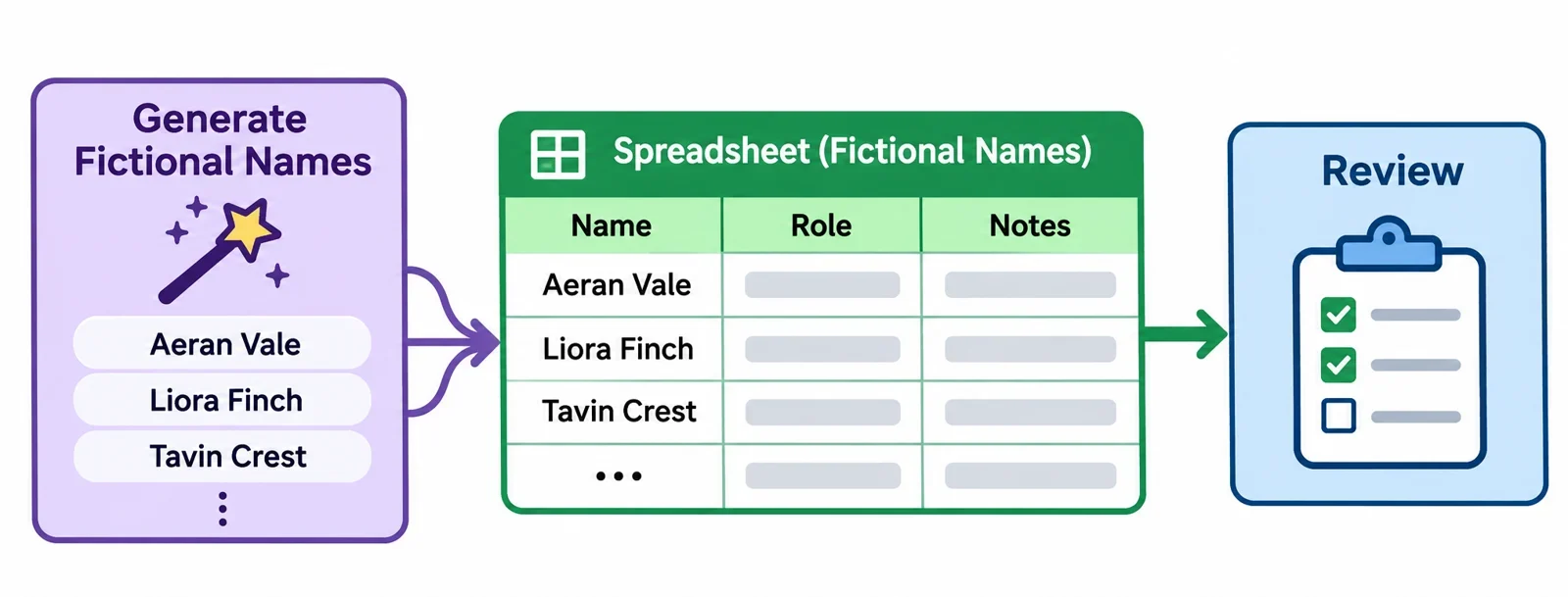
To create sample person names for a spreadsheet, first decide what each row represents and which name fields your test needs. Generate a starting list of fictional names, place them in consistent columns, and then review repeated names and records against your test goals.
A useful test sheet does not need to look like a perfect address book. It needs to make the behavior you want to check easy to see. A matching test, for example, may benefit from repeated names, while a basic import check may call for a straightforward set of rows with separate identifiers. The steps below help you build either kind of sheet and keep track of the choices you make.
Plan the test data
Start by writing down the task the spreadsheet will support. Are you checking that a list imports correctly, that separate name fields appear in the right places, or that a matching process handles similar entries? Your answer determines which rows are useful and which complications can wait.
Choose the number of rows you need. A small set is easier to inspect by eye; a larger set may be useful once the basic layout works. You can begin with a few examples, confirm that the columns suit your task, and then add more rows. Keep a note of the intended total so you can check that the finished sheet contains enough entries.
Decide what a row represents
Ask whether every row should represent a different fictional person or whether several rows may refer to the same person. If you are testing a list of people, you might want one row per fictional person. If you are testing how records are matched, multiple rows for the same fictional person may be deliberate. Make that distinction before checking for duplicates: the same name can appear in more than one record without those records necessarily representing the same person.
Next, decide how the names should be stored. A single Full name column is convenient when the receiving workflow expects one field. Separate Given name and Surname columns give you more control when a workflow uses components separately. You can also keep both forms, provided you decide how they will be kept consistent. If an additional component is relevant, give it its own column and leave the cell blank when you do not need a value.
Finally, decide which exceptions belong in the sample. You might reserve a few rows for repeated names or missing components, while keeping the rest simple. Record that plan somewhere alongside your work so another person reviewing the sheet can distinguish a deliberate test case from a mistake.
Generate a starting list
Use a person-name generator to create fictional examples for the rows you planned. Before generating a full list, review the available name-format choices and check whether a surname override is useful for your test. For example, a shared surname could help you create rows that should not be treated as the same person merely because one component matches. Choose the format that best fits the columns you intend to use.
Create a small trial set first. Look at the results and compare them with your plan: do you have the components you need, and can you tell where each name begins and ends? If the tool offers a surname override, check how to enter the value and inspect the resulting names before relying on it for a larger set. A format that works for a full-name column may require additional organization if your spreadsheet needs separate components.
Check the transfer before scaling up
The steps for getting results into a spreadsheet depend on the tool’s actual output. Check whether you can select and copy the names, whether an export is offered, and how the output separates one result from the next. Do not assume that the tool will create spreadsheet columns or a downloadable file automatically.
Try transferring a few results into a temporary area of your sheet. Inspect the pasted cells: ideally, each result lands in the row you intended, without extra text or unexpected breaks. If the names arrive together in one cell, see what transfer or separation options are available in the tool and spreadsheet you are using. Alternatively, enter a small set manually, checking each row as you go. Once the trial looks right, repeat the process until you have the planned number of rows.
Treat the output as fictional test material, not as a demographic sample. Faker-based person data is not demographically accurate, so it should not be used to draw conclusions about real populations. If your test depends on a particular population pattern, define that requirement separately and choose data suited to it.
Arrange names in consistent columns
Set up a header row before adding the complete list. Give each field a clear name, and put the same kind of information in the same column for every record. A simple layout might look like this:
| Row ID | Given name | Surname | Full name | Test note |
|---|---|---|---|---|
| 001 | Mira | Calder | Mira Calder | Standard entry |
| 002 | Theo | Calder | Theo Calder | Shared surname |
| 003 | Mira | Calder | Mira Calder | Repeated name |
These names are examples for a fictional test sheet. The identifier distinguishes the rows even when their names match. It does not, by itself, say whether rows 001 and 003 represent the same fictional person; that depends on the scenario you define. Use a separate person identifier if your test needs to express that relationship, and document how it should be interpreted.
If your workflow only needs full names, omit the component columns. If it needs separate components, enter each part in the appropriate field instead of assuming a full name can always be divided correctly. For an optional component, add a dedicated column when it is relevant and leave the cell blank when that component is absent. Avoid putting placeholders into name cells unless the behavior of those placeholders is part of the test.
Check the sheet before using it
Review a few rows from the beginning, middle, and end of the list. Confirm that identifiers are present, names have not shifted into neighboring columns, and each row has the fields required for its intended case. Check for accidental leading or trailing spaces and inconsistent capitalization. These small differences can affect a comparison or make the sheet harder to review.
If you maintain both component columns and a full-name column, compare them for consistency. For example, if you change a surname in the separate field, check the corresponding full name as well. Keep a clean baseline copy before adding deliberate variations, so you can return to the straightforward examples when investigating a problem.
Review duplicates and test variations
A duplicate name and a duplicate record are different things. Two fictional people can share the same name, while two rows may also be intended to describe the same fictional person. Names are not individually unique identifiers, so a repeated name alone is not enough to decide that a row should be removed.
Review repeated names against the purpose of your sheet. If you need one row per fictional person, decide whether each repeated name is an intentional example of two people sharing a name or an accidental repeated entry. If you are testing matching, keep the repetitions that exercise the behavior you want to observe. Use a note or a separate test-case column to mark your intention, rather than relying on memory.
For repeated records, compare the identifiers and other fields you have chosen to include. An accidental copy might need correction or removal; a deliberate second record might need to remain. For instance, two rows with the same fictional person identifier and the same name could test an exact repeat. Two rows with different person identifiers and the same name could test whether a process avoids combining distinct people. Decide the expected outcome for each case before running the test.
Add variations with a purpose
Missing values, errors, and changes over time can cause identifiers to disagree when records are linked. If your workflow needs to handle such cases, make a small, labeled set of variations. You might leave a surname blank in one row, introduce a spelling difference in another, or give two records for the same fictional person different name values. Keep the original and changed values visible where that helps you judge the result.
For each variation, write down what you expect the workflow to do. Should it flag the row for review, accept it, or avoid treating it as a match? The right expectation depends on the process you are testing. Afterward, compare the actual result with that expectation and investigate surprises.
Finish by checking the row count, column headings, and intentional test cases. Save a working copy in the format your receiving workflow requires, then open or inspect it as appropriate to confirm that the names and columns still appear as intended. Your sheet is ready when each unusual entry has a reason and you can explain what the test is meant to reveal.